Live Weather: Forecast & Radar
Chavazoem PotenutmeWeather
3.735.00 Reviews
- Version
- 1.6.0.0
- Installs
- 500.00K
- Age Rating
- Everyone
Screenshots
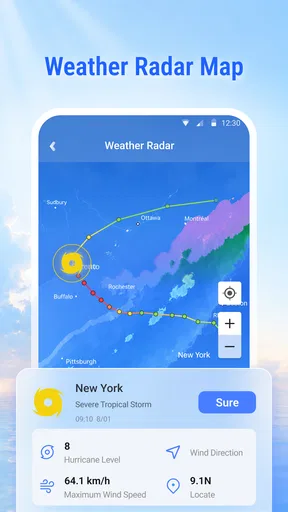
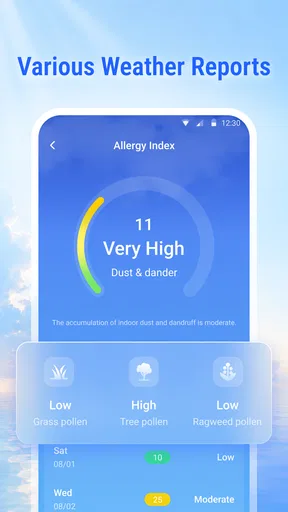
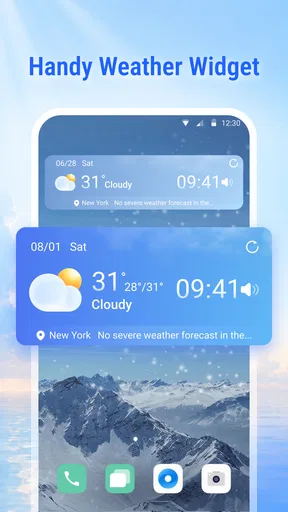
Our Review of Live Weather: Forecast & Radar
 Analysis by Appyee
If you want a straightforward way to check the conditions before leaving home, Live Weather: Forecast & Radar is designed around that simple need. I approached it as a first-time user would: install a free weather app, find the current conditions, and decide whether it is useful enough to keep on my phone. Its focus is daily planning rather than entertainment, and the central promise is easy to understand: live weather information that helps you make ordinary decisions with less guesswork.
The app comes from Chavazoem Potenutme and sits in the weather category. It is intended for Everyone, so the presentation is approachable for a broad audience. The current release is version 1.2.0.0, and it requires Android 9 or newer. That makes the first compatibility check simple: if your device runs an older Android version, this is not the right choice for that phone. For supported devices, the app is free to use, which removes the biggest barrier to trying it.
What to expect when you open the weather app
My first impression is that this is best understood as a practical daily reference, not as a replacement for a specialist meteorological workstation. You open it because you want to know what the day may feel like, whether conditions are changing, or whether an outdoor plan needs a second look. The short store description, “Live Weather,” is brief, but the more useful interpretation is an app for checking current information and forecasts without turning a basic question into a research project.
That distinction matters because people use weather apps in different ways. A commuter usually wants a quick glance before walking to a bus stop. Someone arranging a picnic needs a broader look at the day. A traveler may want to compare conditions at a destination before setting off. In my view, this app is most appealing when the answer needs to be available quickly and the user does not want to manage a large collection of technical weather tools.
The app has attracted an average rating of 4.6 from 89 ratings, with over 50 thousand installs. I would treat those figures as encouraging signs of interest rather than proof that it will suit every weather routine. Weather preferences are personal: one person values a clean, fast check, while another expects layers of radar information, long-range comparisons, alerts, or detailed atmospheric data. The right question is not whether this app can replace every alternative, but whether its live forecast approach matches the way you actually plan your day.
One useful habit is to decide what question you are asking before opening it. “Do I need a coat?” is different from “Can I safely plan an outdoor event?” The first calls for a quick current-weather check. The second deserves more attention to the forecast trend and changing conditions. Starting with a clear question keeps the app useful and prevents the common mistake of treating one glance at a weather screen as a guarantee.
How I would approach the first setup
After installation, I would begin by looking for the app’s main location and forecast view rather than exploring every available control. A first-time user usually needs only one meaningful result: the weather for the place where they are now or the place they care about most. Keeping that first session focused makes it easier to understand what the app is showing and whether the information feels relevant.
If the app asks for location access, read the request in the context of the task. Location is useful when you want local conditions without manually entering a place. If you prefer more control over privacy or regularly plan for another city, using a chosen location can be more comfortable when that option is available. I would not rush through the setup blindly. The best weather routine is one that gives you the right location every time, because even an attractive forecast is unhelpful when it is tied to the wrong place.
A practical first check is to compare the displayed location with your actual surroundings. This sounds obvious, but it prevents a surprisingly common source of confusion: a forecast can look incorrect simply because the app is showing a previous location, a destination, or a broad nearby area. I would also check whether the current conditions and the forecast refer to the same place before using the information to make a decision.
The Android requirement is another part of setup worth handling before troubleshooting anything else. Since the app needs Android 9 or newer, users on older phones should not spend time trying to solve a compatibility problem through repeated installation attempts. On a supported device, I would keep the first session uncomplicated: establish the location, view the current weather, and then move to the forecast only after confirming that the basic result makes sense.
Because the app is free, the decision to test it is relatively low-risk financially. That does not mean it costs nothing in attention. A weather app earns a place on my home screen only if it gives me a useful answer faster than opening a browser or relying on a general search. I recommend judging it on that practical standard during the first day rather than keeping it installed merely because the download was easy.
The first successful action that makes it worthwhile
For a new user, the first success should be very concrete: check the forecast before a real activity and use it to make a small decision. For example, imagine leaving for work in the morning with a walk between a home, a station, and an office. I would open the app, confirm the local conditions, inspect how the day is expected to develop, and decide whether to carry an extra layer or adjust the timing of the walk. That is a modest use case, but it is exactly where a weather app proves its value.
Another realistic scenario is planning an afternoon errand with a child. Rather than checking only the temperature, I would look at the forecast as a sequence: what the conditions are now, what they may be around the time of the outing, and whether the plan leaves enough flexibility to return early. The important insight is that the app is more useful when it supports a decision than when it is treated as a screen to browse repeatedly without a purpose.
I also recommend checking the forecast at two different moments on the same day. The first check tells you whether the information is easy to find and understandable. The later check shows whether the app fits naturally into your routine when plans change. This is a better test than judging the interface after one opening, because convenience is about repeat use. If you can answer your question in a few seconds without re-learning the layout, the app is doing its main job well.
For outdoor plans, use the forecast as a planning aid rather than a promise. Weather can change, and a forecast should inform your choices without encouraging overconfidence. If the activity is important, I would check again closer to departure and leave room for changing conditions. This is one of the most useful habits a first-time user can build: use the app to reduce uncertainty, not to pretend uncertainty has disappeared.
A less obvious workflow is to make the app part of a decision chain. First, check the current conditions. Next, identify the time window that matters. Then, decide what can be changed if the forecast becomes less favorable. For a short walk, that may mean carrying suitable clothing. For a longer outing, it may mean choosing an alternative time or indoor option. This approach extracts more value from a simple weather check than repeatedly staring at a single current reading.
Where new users may become confused
The word “live” can create unrealistic expectations. In everyday language, it suggests information that reflects present conditions, but it should not be interpreted as a guarantee of perfect, instant awareness of every local change. I would use the app for timely planning while remembering that weather information is an estimate built from changing conditions. If the sky outside clearly disagrees with the screen, trust the physical situation in front of you and treat the forecast as guidance.
Another possible point of confusion is the difference between current weather and a forecast. Current conditions answer what is happening around the selected location now. A forecast answers what may happen later. Those are related but not interchangeable. A pleasant morning does not automatically mean a pleasant afternoon, and a cloudy screen does not by itself tell you how long the conditions will last. When making plans, I would pay attention to the time period connected to the decision instead of relying on the first value I see.
Location is also easy to misunderstand. If the app shows a nearby area rather than the exact street or building you have in mind, that does not necessarily mean the forecast is broken. Weather information is often presented for a geographic area, and conditions can vary within it. I would confirm the selected place, especially before traveling, and avoid assuming that a forecast for one town automatically describes a distant destination.
Users sometimes expect every weather app to behave like a radar specialist. The inclusion of “Radar” in the product name may lead some people to look immediately for highly detailed storm tracking or professional-style map controls. If your routine depends on examining weather systems at a very fine level, compare the app’s actual workflow with a dedicated radar service before making it your only tool. For ordinary planning, a live forecast may be enough; for serious weather monitoring, a more specialized option may be better.
The same trade-off applies to notifications and background behavior. A person who wants to open an app manually and check conditions may prefer a focused tool. Someone who expects automatic warnings, extensive widgets, or deeply configurable alerts should examine the available experience on their device and decide whether it covers that routine. I would not assume that a weather app’s main forecast screen automatically provides every convenience found in larger, more established alternatives.
How it compares with familiar weather alternatives
The usual alternatives are a phone’s built-in weather panel, a browser search, a general assistant, or a larger weather service with many layers of information. The built-in option often wins for speed because it is already integrated into the device. A browser can be useful when checking several locations at once. A broad weather service may appeal to people who want maps, extended detail, alerts, and multiple data views in one place.
Live Weather: Forecast & Radar makes more sense when you want a dedicated destination for weather rather than a result buried inside another tool. Its free price makes it easy to compare with your current routine. I would install it alongside my existing method for a short trial, then ask which one gets me from opening the phone to making a decision with less friction. If the built-in panel already answers everything you need, adding another app may not improve your day.
On the other hand, a dedicated app can feel more intentional than a quick search result. Instead of typing the same question repeatedly, you can build a habit around opening one weather-focused tool and checking the relevant location. That advantage is strongest for people who look at the weather several times a day or who plan around changing outdoor conditions. It is weaker for someone who checks the forecast only once every few weeks.
The developer, Chavazoem Potenutme, presents this as a focused weather product rather than a broad lifestyle platform. That focus is part of its appeal, but it also means I would evaluate it honestly against the depth you expect. If you need a professional meteorological workflow, a dedicated specialist service is likely the better fit. If you need a free, approachable way to organize everyday decisions around current weather and forecasts, this app deserves a fair trial.
Small habits that improve the experience
My first tip is to check the location before interpreting the forecast, especially after traveling. This takes only a moment and avoids making decisions based on a saved place. My second is to look at the time window that matches your activity instead of using the current condition as a shortcut for the entire day. These two habits are simple, but they prevent the most common mistakes in casual weather-app use.
My third tip is to create a backup plan whenever the activity has consequences. If you are heading to an appointment, pack for the likely conditions and allow extra time if weather could slow the journey. If you are planning something outdoors, decide in advance what sign would make you postpone it. The app can support that preparation, but the quality of the decision still depends on how thoughtfully you use the information.
A fourth useful approach is to compare the app with what you actually experience over several checks, without expecting exact perfection. Notice whether the presentation helps you understand the day and whether the forecast is clear enough for your decisions. I am less interested in whether a single prediction feels flawless than in whether the app consistently helps me choose clothing, timing, and alternatives with less uncertainty.
There is also a privacy-and-convenience trade-off worth considering. Automatic local weather is convenient, while manually choosing a place can give you more control. I would choose the method that matches your routine: local access for frequent home-area checks, a selected location for travel planning or a fixed destination. The important thing is to know which place the app is using before trusting the result.
Who should try it, and who should look elsewhere
I think this app is a good candidate for first-time weather-app users, people who want a free dedicated forecast tool, and anyone who regularly makes small outdoor decisions during the day. It is also suitable for households where a simple, readable weather routine matters more than a large set of advanced controls. The Everyone age rating supports that broad accessibility, while Android 9 or newer defines the practical device boundary.
I would be more cautious if your needs are highly specialized. If you require detailed storm analysis, professional forecasting tools, extensive historical information, or a very specific alert system, compare this app carefully with a service built around those priorities. Likewise, if your phone already has a weather panel that gives you the same information with less effort, there may be no strong reason to add another icon.
The rating of 4.6 suggests that many users have responded positively, and the install base of more than 50 thousand shows that it has reached a meaningful audience. Still, I would not use popularity as a substitute for testing. Weather apps are unusually dependent on location, routine, and personal expectations. The best choice is the one that gives you a clear answer for your own plans and does so without unnecessary steps.
My final take after using it as a daily planning tool
Live Weather: Forecast & Radar succeeds when I treat it as a practical checkpoint between “I have a plan” and “I know what conditions may affect it.” The free access makes experimentation easy, the weather focus keeps the purpose clear, and the live forecast approach is well suited to everyday questions. I especially like the idea of testing it through real decisions rather than judging it only by its first screen.
It is not automatically the best answer for every weather enthusiast. Users who want deep technical analysis or a large ecosystem of alerts and specialized views may prefer a more established or more advanced alternative. The app also cannot remove the basic uncertainty of forecasting, so sensible planning still requires judgment and occasional rechecking.
For a first-time user, my recommended path is reassuringly simple: install it on a compatible Android device, establish the correct location, check the current conditions, choose one real activity, and use the forecast to make a small practical decision. If that process feels clear and repeatable, the app has earned a place in your routine. Its strongest quality is not making weather complicated; it is helping you turn a quick check into a better everyday plan.
Overall, I would recommend giving it a trial if you want a focused, free weather app for ordinary daily planning. Keep your expectations realistic, verify the place and time you are viewing, and use a specialist alternative when your needs move beyond casual forecasting. For commuting, errands, short trips, and flexible outdoor plans, it offers a sensible starting point without asking you to become a weather expert first.
Privacy and Permissions
See what permissions an app requests and how it handles your data.
- Location
- approximate location (network-based), precise location (GPS and network-based)
- Photos/Media/Files
- read the contents of your USB storage
- Storage
- read the contents of your USB storage
- Wi-Fi connection information
- view Wi-Fi connections
- Other
- view network connections, connect and disconnect from Wi-Fi, full network access, run at startup, control vibration, prevent device from sleeping, Google Play license check
Verdict
Strengths of Live Weather: Forecast & Radar
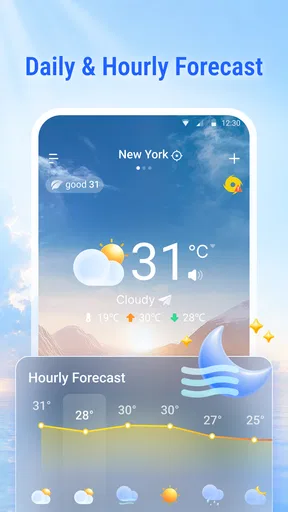
- Clear hourly and daily forecasts for quick planning.
- Interactive radar helps track approaching rain and storms.
- Useful weather alerts can warn about severe conditions.
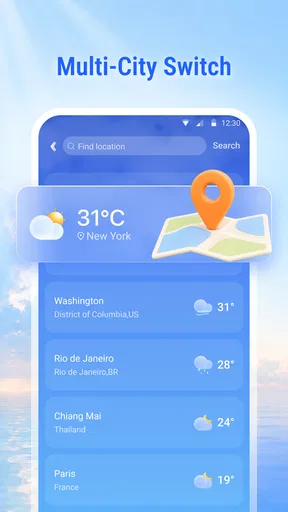
- Supports multiple locations for travel and family monitoring.
- Clean layout makes key weather details easy to find.
Limitations of Live Weather: Forecast & Radar
- Some advanced radar features may require a subscription.
- Forecast accuracy can vary by region and local data coverage.
- Frequent alerts may feel excessive without careful customization.
- The app may use noticeable battery and background data.
- Advertising can make the free experience feel less polished.
Similar Picks in This Category
View All
Weather - By Xiaomi
Xiaomi Inc.4.1

Weather & Radar Forecast
WetterOnline4.8

Weather
OneLouder Apps4.6

AccuWeather: Weather Radar
AccuWeather3.6

The Weather Channel - Radar
The Weather Channel4.6

1Weather Forecasts & Radar
OneLouder Apps4.3
Frequently Asked Questions
What is Live Weather: Forecast & Radar?
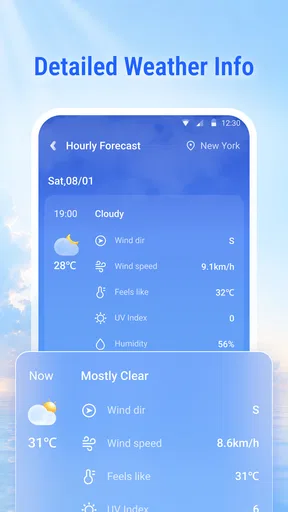
Live Weather: Forecast & Radar is a weather application designed to provide current conditions, hourly forecasts, extended daily predictions, and radar-based weather information in one place. After opening the app, users can check temperature, feels-like conditions, wind, humidity, precipitation, visibility, and other useful details for their current location or any city they search for.
Does Live Weather: Forecast & Radar provide accurate weather information?
The app presents weather information from forecasting services and updates its data regularly, making it useful for everyday planning. However, weather predictions are not guaranteed and accuracy can vary depending on location, forecast range, local terrain, and rapidly changing conditions. Radar images and severe-weather alerts should be treated as helpful guidance rather than a replacement for official emergency warnings.
Does the app require location permission?
Location permission is generally useful because it allows Live Weather: Forecast & Radar to automatically display conditions and forecasts for your current area. You may usually deny this permission and manually search for cities instead, although some location-based features may be less convenient. Before enabling access, review the app’s permission request and privacy information to understand how location data is handled.
Is Live Weather: Forecast & Radar free to download and use?
The application may be available to download at no initial cost, but some features can depend on advertising, subscriptions, or in-app purchases. Premium options may remove advertisements or unlock additional forecast, radar, customization, or alert tools. Availability and pricing can differ between Android and iOS, so check the relevant store listing before downloading and confirm any trial or renewal terms.
Can Live Weather: Forecast & Radar send severe-weather alerts?
Depending on your region, device settings, and the features enabled in the app, Live Weather: Forecast & Radar may offer notifications for changing conditions or significant weather events. Alerts require notification permission and may also depend on available data sources. For hurricanes, tornadoes, floods, lightning, or other dangerous situations, always compare the app’s information with official government or local emergency-service announcements.
